Last updated: October 2026. The steps below are written for Windows laptops. Menu names can differ slightly between Windows versions and graphics drivers. Results vary by laptop and game, so change one setting at a time and test.
Introduction: Why Games Lag on Low-End Laptops
A low-end laptop usually has limited memory, a slower processor and either a weak graphics chip or one that shares memory with the rest of the system. That does not mean games are impossible. In many cases, a few settings and maintenance fixes make a clear difference.
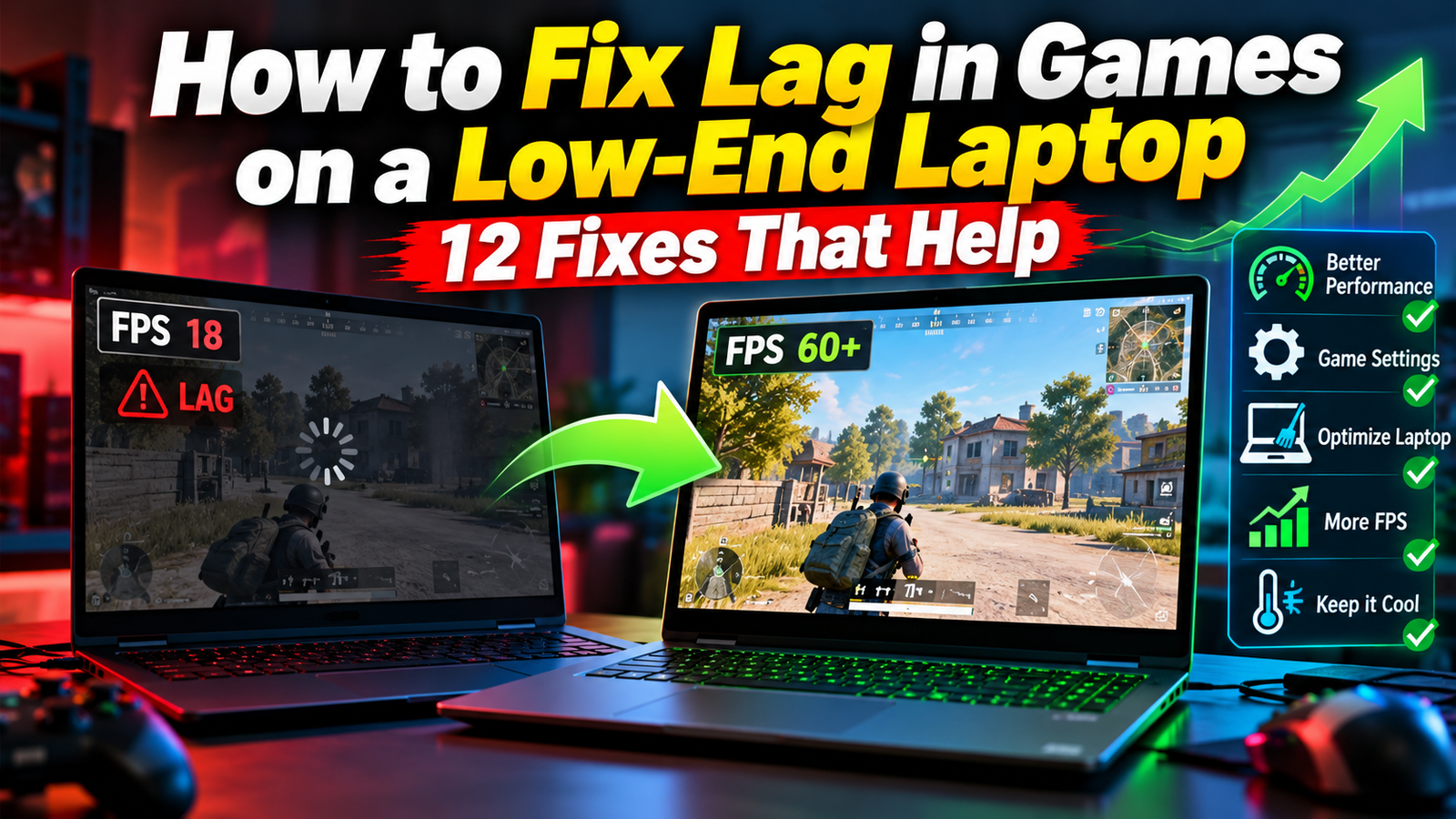
This guide explains the difference between lag, low FPS and stutter, gives a diagnosis table, then walks through 12 fixes in order from easiest to most involved. It also covers how to test your changes and when an upgrade makes sense.
Quick Answer
- Plug in the charger and set Windows to best performance. Laptops slow down on battery.
- Close background apps such as browser tabs, launchers and chat overlays.
- Update graphics drivers from the official site of your GPU maker.
- Lower in-game settings, starting with shadows, effects and resolution.
- Check temperatures. A hot laptop slows itself down.
- Use a wired connection if the problem is ping, not FPS.
Lag, Low FPS, Stutter and Input Lag: What Is the Difference?
| Term | What you notice | Usual cause |
|---|---|---|
| Low FPS | The game looks choppy all the time | Graphics or processor cannot keep up with the settings |
| Stutter | Smooth, then sudden freezes or hitches | Low memory, slow storage, background tasks or overheating |
| Network lag (high ping) | Other players teleport; your actions are delayed in online games | Slow or unstable connection, distant server |
| Input lag | Controls feel slow even when the picture looks fine | Display settings, low FPS, some wireless devices |
Knowing which one you have saves time. A network fix will not help low FPS, and a graphics setting will not fix high ping.
Diagnosis Table: Match Your Symptom to a Fix
| Symptom | Likely cause | Start with fix |
|---|---|---|
| Low FPS in every game | Settings too high for the hardware | Fix 5 and Fix 6 |
| Smooth at first, then slower after 20 to 30 minutes | Overheating or battery mode | Fix 3 and Fix 4 |
| Freezes when loading new areas | Low RAM or slow hard drive | Fix 8 and Fix 9 |
| Fine offline, bad online | Network problem | Fix 10 |
| Game runs worse than a similar laptop | Game using the wrong graphics chip or background apps | Fix 1 and Fix 12 |
| Sudden drops after an update | Driver or game update issue | Fix 2 |
12 Fixes for Game Lag on a Low-End Laptop
Fix 1: Restart and close background apps
Restart your laptop, then close browsers, music apps, downloads and game launchers you are not using. Check Task Manager (press Ctrl + Shift + Esc) and look at which programs use the most memory and CPU. Overlays from chat and recording apps can also take resources.
Fix 2: Update graphics drivers and Windows
Download the latest graphics driver from the official website of your GPU maker (Intel, AMD or NVIDIA) or through your laptop maker’s support page. Install pending Windows updates too. If a problem started right after an update, check the maker’s notes or roll back to the previous driver.
Fix 3: Plug in and use the best performance power mode
Plug in the charger and set Windows power mode to Best performance. On battery, laptops often limit the processor and graphics to save power.
Fix 4: Check temperatures and clean the vents
Heat makes laptops slow themselves down to protect the hardware. Use a free monitoring tool such as HWiNFO to watch temperatures while gaming. Keep the laptop on a hard, flat surface or a stand, clean dust from the vents and avoid playing on a bed or sofa. If the laptop is old, a technician may need to clean the fans and replace the thermal paste.
Fix 5: Lower in-game settings
Start with the settings that cost the most performance and are least noticeable:
- Shadows: set to low or off.
- Anti-aliasing: set to low or off.
- Effects and post-processing: set to low.
- View distance or draw distance: lower it.
- Texture quality: lower it if you have little video memory.
- Turn off motion blur and other extras.
Fix 6: Lower the resolution or use upscaling
Dropping the resolution, for example from 1080p to 720p, often gives a big boost in FPS. Many newer games also offer upscaling options such as AMD FSR, NVIDIA DLSS or Intel XeSS, which render at a lower resolution and scale the image up. Support depends on your hardware and the game.
Fix 7: Cap your frame rate
A stable 30 or 60 FPS feels smoother than a number that jumps between 25 and 60. If your game has a frame limiter, set it to a number your laptop can hold steadily.
Fix 8: Free up storage and use an SSD if you can
A nearly full drive can make loading and stutter worse. Keep some free space and move the game to a solid-state drive (SSD) if your laptop has one. If your laptop only has a slow hard drive, upgrading to an SSD is often one of the most helpful upgrades.
Fix 9: Check your memory (RAM)
Many modern games run best with 16 GB of RAM, and 8 GB is often the minimum. Check how much you have in Settings under System, then About. If your laptop has an empty slot or upgradeable memory, adding RAM can reduce stutter. Using two matching memory sticks often performs better than one.
Fix 10: Improve your network for online games
- Use an Ethernet cable if possible.
- If you use Wi-Fi, move closer to the router and use the 5 GHz band if available.
- Pause downloads, streaming and cloud backups while you play.
- Restart your router if the connection has been on for a long time.
- Choose the nearest game server in the game settings.
- Run a speed and ping test to see whether the problem is your connection.
Fix 11: Turn off startup programs and background updates
In Task Manager, open the Startup apps tab and disable programs you do not need at login. Pause large game or Windows updates while you play. You can also turn on Windows Game Mode in Settings, though its effect varies from system to system.
Fix 12: Make sure the game uses the right graphics chip
Some laptops have both a weak integrated graphics chip and a stronger dedicated one. In Windows go to Settings, System, Display, Graphics and set the game to High performance so it uses the dedicated chip when you have one.
How to Test Your Changes
- Turn on an FPS counter. Steam has one in its in-game settings, and many games have a built-in counter.
- Pick one test scene and play it for a few minutes before you change anything. Write down the average FPS.
- Change one setting at a time.
- Test the same scene again and compare.
- Keep changes that help and undo ones that do not.
Illustrative Example (not a measured result)
| Step | Setting changed | Average FPS (example numbers) |
|---|---|---|
| Start | Default settings on battery | 24 |
| 1 | Plugged in, best performance mode | 30 |
| 2 | Closed browser and launcher | 33 |
| 3 | Shadows and effects to low | 42 |
| 4 | Resolution from 1080p to 900p | 50 |
These numbers are only an example to show how small changes add up. Your results depend on your laptop and game.
When to Upgrade
| Upgrade | Helps with | Notes |
|---|---|---|
| SSD | Slow loading, stutter | Often the best value upgrade for old laptops with hard drives |
| More RAM | Stutter, freezes, background apps | Check whether your laptop allows it before buying |
| Cooling pad or cleaning | Overheating and slowdowns | Cheap and useful if the laptop gets hot |
| New laptop | Low FPS in every game | Graphics chips are usually not upgradeable in laptops |
Common Mistakes to Avoid
- Downloading driver updater tools from unknown sites. Use the official maker or your laptop maker.
- Changing many settings at once, so you cannot tell what helped.
- Ignoring heat and playing on a bed or sofa.
- Buying RAM that does not match your laptop.
- Using unofficial game boosters that promise huge gains.
- Blaming the internet when the real problem is low FPS.
Frequently Asked Questions
Why does my game lag even though my laptop meets the minimum requirements?
Minimum requirements usually mean the game can run at low settings, not that it runs smoothly. Background apps, heat and battery mode can still cause problems.
Will more RAM increase my FPS?
Not always. More RAM mostly reduces stutter and freezing when you are short of memory. It does not make a weak graphics chip faster.
Is Game Mode in Windows worth using?
It can help in some systems and make little difference in others. Try it and compare using your FPS counter.
How can I tell if overheating is the problem?
Watch temperatures while you play. If performance drops after 15 to 30 minutes and the fans are loud, heat is a likely cause.
Are game booster programs safe?
Most do very little and some come with unwanted software. Use the fixes above first.
Sources and Official Links
Related Guides
Not sure what an error message means? An AI assistant can explain it in plain language. See our guide to free AI tools for students.



Leave a Reply