Last updated: October 9, 2026. These fixes come from community reports, troubleshooting guides and standard Windows steps. They are not official fixes from the game’s publisher. Game patches can change what works, so also check the official Aion 2 channels and your launcher for announcements.
Quick Answer
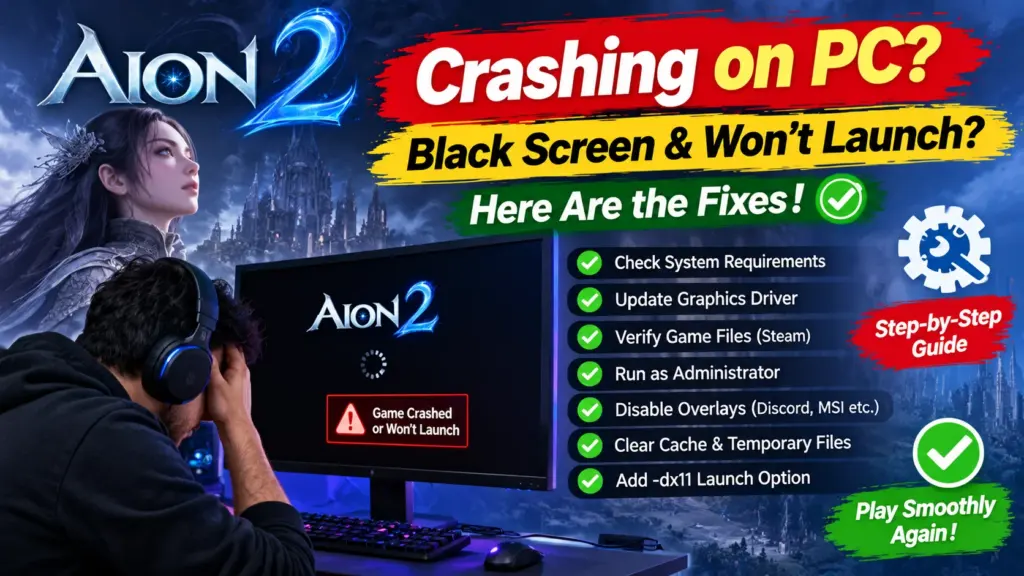
- Fully close the game, launcher and any stuck Aion2.exe or PURPLE processes in Task Manager, then restart your PC.
- Turn off overlays and monitoring tools such as Discord, NVIDIA overlay, Xbox Game Bar, MSI Afterburner and RivaTuner.
- Verify the game files in Steam or the launcher.
- Update your graphics driver from NVIDIA, AMD or Intel.
- Repair Visual C++ and check DirectX 12.
- On a laptop, force the game to use the dedicated graphics card and plug in the charger.
Introduction: Why Is Aion 2 Crashing or Showing a Black Screen?
Aion 2 is a modern online RPG built on a demanding graphics engine, and players on PC report several kinds of problems: crashing at launch, a black screen after startup, closing at the logo, fatal error messages and random crashes during play. Most of these have common causes, such as overlay conflicts, outdated graphics drivers, damaged game files, a stuck background process or a Windows update conflict.
This Aion 2 crashing guide gives you a symptom table, a step-by-step order of fixes from quickest to most involved, notes on common error codes, and tips for contacting support. Try the fixes in order and test the game after each one.
Table of Contents
Symptom Table: Match Your Aion 2 Crashing Problem to a Fix
| Symptom | Likely cause | Try first |
|---|---|---|
| Black screen, but you can hear audio | Overlay, graphics driver or display conflict | Disable overlays; update the graphics driver |
| Game does not start after you click Play | Stuck process or launcher problem | End Aion2.exe and launcher processes; restart |
| Closes at the logo or right after launch | Damaged files, Visual C++ or monitoring software | Verify files; repair Visual C++; close Afterburner and RivaTuner |
| Crashes in busy areas or long sessions | Graphics settings too high, overheating or unstable RAM | Lower settings; check temperatures and RAM speed |
| Black screen on a laptop | The game is using the wrong graphics chip | Force the dedicated GPU |
| Long black screen on first launch | Shader compilation or slow storage | Wait several minutes; use an SSD |
| Problems started after a Windows update | Update conflict | Check recent updates and driver versions |
| Cannot connect to game server | Server issue, firewall or network | Check server status; allow the game through the firewall |
Step-by-Step Fixes for Aion 2 Crashing
Fix 1: Close everything and restart
- Exit the launcher (Steam or PURPLE) from the system tray, not only with the window X.
- Press Ctrl + Shift + Esc to open Task Manager.
- End any process named Aion2.exe, AION 2, PURPLE, or related launcher and anti-cheat processes.
- Restart your PC from the Start menu and launch only the launcher you need.
Fix 2: Turn off overlays
Overlays hook into the game’s graphics and can cause black screens or crashes. Disable them temporarily and test:
- Steam overlay (Steam, Settings, In Game).
- Discord overlay.
- NVIDIA overlay or GeForce Experience in-game overlay.
- Xbox Game Bar.
- The launcher’s own in-game overlay, such as the PURPLE overlay (Settings, General).
- Screen recorders and streaming tools.
Fix 3: Close monitoring and tweaking tools
Fully close MSI Afterburner, RivaTuner Statistics Server and similar tools. Players report that RivaTuner can cause crashes even when its on-screen display is hidden. Also temporarily close RGB and peripheral software such as Razer Synapse, ASUS Armoury Crate or Aura and Corsair iCUE, which some players link to the game closing.
Fix 4: Verify the game files
| Launcher | Steps |
|---|---|
| Steam | Library, right-click Aion 2, Properties, Installed Files, Verify integrity of game files |
| PURPLE | Select Aion 2, open the menu next to Play, then Game Settings and run a file scan or repair |
Fix 5: Update your graphics driver
- Download the latest driver from the maker: NVIDIA, AMD or Intel.
- Close the game and the launcher, then install the driver.
- Choose a clean installation option if the installer offers one.
- Restart your PC before launching the game.
If your PC runs a recent Windows update and you also see graphics crashes in other apps, read our guide to the Windows 11 September 2026 update problems.
Fix 6: Repair Visual C++ and check DirectX 12
- Download the latest Microsoft Visual C++ Redistributable (both x64 and x86) from Microsoft.
- Run each installer and choose Repair if offered.
- Press Windows key + R, type dxdiag and press Enter. Check the DirectX version shown on the System tab.
- Restart your PC.
Fix 7: Force the dedicated graphics card (laptops)
- Open Settings, System, Display, Graphics.
- Add the Aion 2 executable (browse to the game’s folder) and select Options.
- Choose High performance and save.
- Also use the NVIDIA Control Panel or AMD software to assign the dedicated GPU if you have one.
- Plug in the charger while playing.
Fix 8: Lower graphics settings and test display options
- Lower the graphics preset and turn off extras such as ray tracing, upscaling or frame generation for a test.
- Switch the game to Windowed or Borderless mode.
- Temporarily disable G-Sync or FreeSync and V-Sync.
- Disconnect a second monitor for one test launch.
Fix 9: Clear the shader cache
A damaged shader cache can cause crashes. Press Windows key + R, paste a folder path for your graphics card, and delete the contents of the folder (not the folder itself). Then restart the game, which will rebuild the cache and may take longer to load the first time.
| Graphics card | Folders to clear |
|---|---|
| NVIDIA | %LOCALAPPDATA%\NVIDIA\DXCache and %LOCALAPPDATA%\NVIDIA\GLCache |
| AMD | %LOCALAPPDATA%\AMD\DxCache |
| Intel | %LOCALAPPDATA%\Intel\ShaderCache |
Fix 10: Increase virtual memory (page file)
Many games use virtual memory even when you have plenty of RAM. In Windows, search for Advanced system settings, Performance Settings, Advanced, Virtual memory, and set the page file to System managed size, or a custom size if you know what you are doing. Make sure the drive has enough free space, then restart.
Fix 11: Check RAM speed and overclocks
Some players report crashes with high-speed memory profiles (XMP or EXPO) or overclocks. Reset your CPU, GPU and RAM to default settings for one test. If crashes stop, your overclock may be unstable.
Fix 12: Check antivirus and Windows security
- Open your antivirus quarantine and history to see whether the game or launcher was blocked.
- Add the game folder and launcher to the exclusions list if they were wrongly flagged.
- Allow the game through the firewall if you see connection errors.
Fix 13: Check recent Windows updates
Players have linked some black-screen and launch problems to specific Windows updates. Open Settings, Windows Update, Update history and see whether the problem began right after an update. Install the newest updates first, because many issues are fixed in later patches. Uninstall an update only as a last resort, as it includes security fixes.
Fix 14: Reinstall the game (last resort)
Uninstall the game, delete any leftover game folders, restart, and install it on an SSD if you can. Keep your launcher updated.
Common Error Codes (Community-Reported)
Error names and causes come from player guides, so treat them as hints, not official diagnoses.
| Error | Often reported cause | What to try |
|---|---|---|
| Aion2.exe 0xE0000015 (launch failure) | Launcher stuck or a previous game process still running | End all Aion 2 and PURPLE processes; restart; reset the launcher cache |
| 0xE0000027 (startup or random crash) | Overlays, memory instability or security software | Close overlays; reset RAM and overclocks; check exclusions |
| UE-AION2 Fatal Error | Overlay or client compatibility | Disable the launcher overlay; verify files |
| S:8970 No connection to the game server | Server issue, firewall or network route | Check server status; allow the game through the firewall; restart your router |
| DirectX 12 error | Old graphics driver or Windows components | Update the driver and Windows; run dxdiag |
Before You Contact Support About Aion 2 Crashing
- Note your graphics card model and driver version.
- Run dxdiag and save the report.
- Write down the exact error message or code and what you were doing.
- List what you have already tried.
- Take a screenshot and note the time and date.
Use only the official support channels listed by the game’s publisher and launcher, and never share your password.
Tips to Prevent Aion 2 Crashing in Future
- Keep graphics drivers up to date, but wait a day or two for bad driver releases to be reported.
- Close unnecessary background apps before playing.
- Keep the game on an SSD with plenty of free space.
- Keep your PC cool: clean dust and check temperatures.
- Avoid unsupported overclocks and unofficial mods.
- Create a restore point before major Windows or driver updates.
Final Thoughts on Aion 2 Crashing
Aion 2 crashing on PC usually comes down to a few common causes such as overlay conflicts and outdated drivers. Try the fixes in order, test after each one and note any error code before you contact support. These are community-reported fixes, so also watch the official Aion 2 channels for patches.
Frequently Asked Questions
Why does Aion 2 show a black screen but I can hear sound?
This usually points to a graphics or overlay problem. Disable overlays, update your graphics driver and test windowed or borderless mode.
Is Aion 2 crashing because of my PC specs?
Sometimes, but many crashes come from overlays, drivers or damaged files. Check the official system requirements on the game’s store page, and lower your settings to test.
Will reinstalling the game help?
It can if files are badly damaged, but verify files first because it is faster.
Can antivirus cause Aion 2 to crash?
Yes, in some cases. Check quarantine and add exclusions only if the game files are from the official launcher.
Should I wait for a patch?
If you have tried the steps above, check official announcements. Publishers often release fixes for widespread crashes.
What should I try first for Aion 2 crashing?
Restart the PC, close overlays and background apps, and update your graphics drivers, then test the game after each change. Aion 2 crashing often has a simple cause, so go from the quickest fix to the most involved.
Sources and Official Links
Related Guides
Also read: How to fix lag in games on a low-end laptop. You may also like Handheld Gaming PC vs Console vs Cloud Gaming.