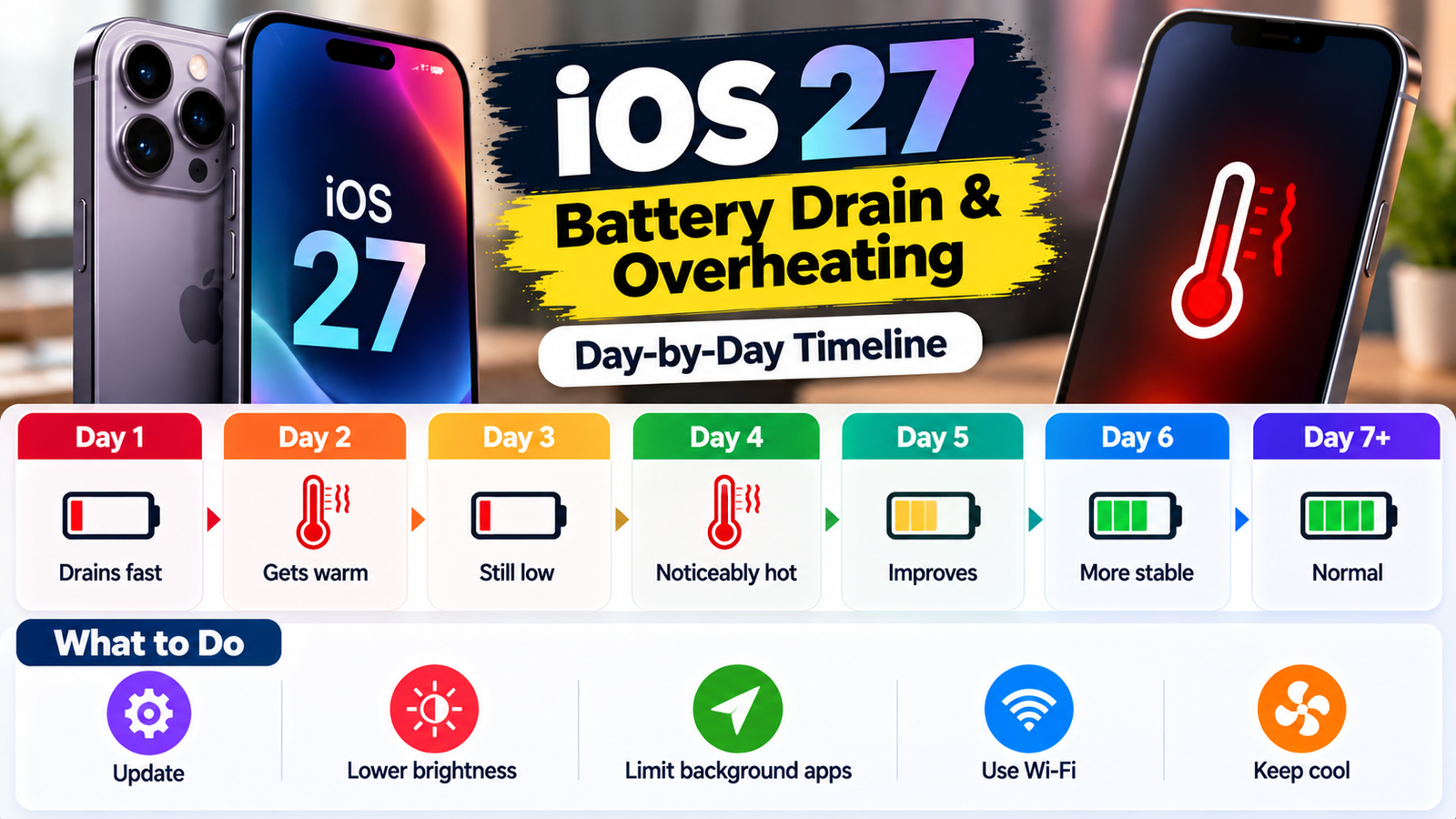
Last updated: October 9, 2026. Timelines below combine Apple’s guidance with user and press reports. Every iPhone, photo library and app mix is different, so your own experience may vary. Menu names can change slightly between iOS versions.
Introduction: Is It Normal for iOS 27 to Drain the Battery and Heat Up Your iPhone?
If your iPhone feels warm and the battery is falling faster since you installed iOS 27, you are not alone. After a major update, the phone keeps working in the background even though it looks ready to use. It re-indexes photos and files, updates search and Siri data, optimizes apps and downloads extra assets. That extra work uses power and creates heat.
Apple’s support guidance says tasks related to an update can continue in the background and may temporarily affect battery life and thermal performance. Reports about iOS 27 say the effect is usually strongest in the first 24 to 48 hours, can last two or three days, and may take a little longer on phones with large photo libraries.
Quick Answer
- Wait 3 to 4 days before judging battery life. Many phones settle sooner, but some need a few more days.
- Look for the Ongoing iOS Update message in Settings, Battery, which shows the background work is still running.
- Plug in overnight on Wi-Fi and leave the phone locked, so background tasks can finish.
- Update your apps and restart the phone once or twice.
- Check Battery usage to see whether one app is the real problem.
- If drain or heat is still severe after about a week, the cause is probably an app, the battery’s health or a bug, not the update’s normal settling.
Day-by-Day Timeline: What to Expect After Updating
| When | What is happening | What you may notice | What to do |
|---|---|---|---|
| During the update (first hour) | Files are installed and the system restarts | The phone is warm; charging may be slow | Keep it plugged in and out of the sun; do not start heavy apps |
| Day 1 (first 24 hours) | Heavy background work: indexing, photo analysis, app optimization, syncing | Fastest battery drop and a warm phone, even when idle | Be patient; plug in overnight on Wi-Fi; avoid judging battery life yet |
| Day 2 | Background tasks continue, especially for large photo libraries and cloud data | Battery still drops faster than usual, but warmth should ease | Restart the phone; update apps in the App Store |
| Day 3 | Most background work finishes on many phones | Battery life improves; day-to-day use feels more normal | Check Settings, Battery for the Ongoing iOS Update insight |
| Days 4 to 5 | Final optimizations on phones with lots of data or new AI and search features | Small variations from day to day | Keep apps updated; avoid new settings changes |
| Day 7 | Normal settling period is over for most phones | Battery should be close to your usual | If it is still poor, start troubleshooting one cause at a time |
| After 1 to 2 weeks | Anything remaining is probably not just post-update work | Persistent drain or heat in light use | Follow the full troubleshooting list below or contact Apple Support |
What Is Normal and What Is Not
| Normal in the first few days | Not normal, so look into it |
|---|---|
| Battery draining faster than usual | Battery dropping many percent in a few minutes while the phone is idle after a week |
| Phone feeling warm while idle or charging | The screen warning that the iPhone needs to cool down, especially in cool rooms |
| Phone slightly slower during indexing | Constant lag, crashing apps or random restarts after several days |
| Battery graph showing high activity while the phone is locked | One app using a huge share of battery over many days |
| Different results from day to day | Swollen battery, case bulging, or a battery health message asking for service |
If your phone gets very hot, swells or smells unusual, stop using it, unplug it and contact Apple Support or an authorized service provider.
Step-by-Step Fixes
1. Give it a few days and keep it plugged in overnight
Connect to power and Wi-Fi overnight and leave the screen off. Background tasks often continue during charging, so this helps them finish sooner.
2. Restart the iPhone
- Turn the phone off from Settings, General, Shut Down, wait 30 seconds, then turn it on.
- If it is frozen or very slow, do a force restart: press and release volume up, press and release volume down, then hold the side button until you see the Apple logo (iPhone 8 and later).
3. Update your apps and iOS
- Open the App Store, tap your profile picture and update all apps. Apps built for older iOS versions can misbehave on a new release.
- Check Settings, General, Software Update for an iOS 27 point update. The first release of a new iOS is often followed by fixes.
4. See what is using your battery
- Go to Settings, Battery and view the last 24 hours and last 10 days.
- Look for any app with unusually high usage, and for Screen On versus Screen Off use.
- If one app is draining power, update it, restrict its background activity or reinstall it.
5. Turn off battery-hungry features for a few days
| Setting | Where to find it | What to try |
|---|---|---|
| Background App Refresh | Settings, General, Background App Refresh | Turn off for apps you rarely open |
| Location Services | Settings, Privacy and Security, Location Services | Set non-essential apps to While Using or Never |
| Screen brightness and Always-On Display | Settings, Display and Brightness | Lower brightness; turn off Always-On Display if your model has it |
| Push email and frequent syncing | Settings, Mail, Accounts, Fetch New Data | Choose less frequent fetching |
| Weak cellular signal or 5G | Settings, Cellular | Try 5G Auto or LTE where signal is weak |
| Widgets and Live Activities | Home Screen and Lock Screen | Remove widgets you do not need |
| Low Power Mode | Settings, Battery | Turn on temporarily when you need extra battery |
6. Check storage and Battery Health
- In Settings, General, iPhone Storage, make sure you have plenty of free space. A nearly full phone has to work harder.
- In Settings, Battery, Battery Health and Charging, look at Maximum Capacity. Apple considers a battery with significantly reduced capacity, around 80 percent or lower, to be worn. If yours is low, a battery service can make a bigger difference than any software fix.
7. Reset settings (does not erase your data)
If problems persist after about a week, try Settings, General, Transfer or Reset iPhone, Reset, Reset All Settings. This removes your customized settings, such as Wi-Fi passwords and wallpapers, but not your photos, apps or messages. Back up your iPhone first.
8. Back up and restore, or contact Apple
As a last resort, back up your iPhone and restore it from the backup or as new using a computer. If the problem remains, contact Apple Support. Downgrading to an older iOS version is usually not possible once Apple stops signing it, and it can cause problems, so it is generally not recommended.
How to Reduce Overheating
- Take off a thick case while charging or playing games.
- Do not charge in direct sunlight, in a hot car or under a pillow.
- Avoid heavy tasks while charging, such as gaming, long video calls or recording video.
- Use a good-quality cable and charger. Avoid cheap, uncertified chargers.
- Wireless charging creates more heat than a cable, so switch to a cable if your phone gets warm.
- Keep the phone in a comfortable temperature. Apple says iPhones are designed to work in ambient temperatures from 0 to 35 degrees Celsius (32 to 95 degrees Fahrenheit).
- If the cool-down warning appears, let the phone rest in a cooler place and do not try to cool it in a fridge or freezer.
Is It the Update, an App or the Battery?
| Clue | Likely cause | What to do |
|---|---|---|
| Battery and heat were fine until the update, then eased within days | Normal post-update background work | Wait, charge overnight and keep apps updated |
| Drain started with a particular app | The app | Update, limit or delete it |
| Battery percentage jumps or the phone shuts down at 20 to 30 percent | Worn battery | Check Maximum Capacity and consider a battery service |
| Phone is hot even when idle, after more than a week | App, bug or hardware problem | Troubleshoot step by step; contact Apple |
| Drain mostly with the screen off | Background activity or poor signal | Review Background App Refresh and cellular signal |
| Drain mostly with the screen on | Brightness, games or video | Lower brightness and close heavy apps |
Should You Update or Wait?
| Situation | Suggestion |
|---|---|
| You have an important trip or event in the next few days | Wait until afterward, so any temporary drain does not catch you out |
| You rely on your phone all day for work | Update at the end of the day and charge overnight |
| You like new features and have time to settle | Update, then give the phone three or four days |
| Your battery health is already low | Consider a battery service, because a worn battery makes post-update drain feel worse |
| You are unsure | Wait for the first point update, which often fixes early bugs |
Common Mistakes to Avoid
- Judging battery life on day one.
- Force-quitting all apps constantly, which can use more power than leaving them alone.
- Installing random battery-saving apps.
- Resetting or restoring the phone too early.
- Charging in a hot place or under pillows.
- Ignoring an old, worn battery.
Frequently Asked Questions
How long does iOS 27 battery drain last?
Most reports say 24 to 48 hours of heavier drain, and up to three days or a bit longer for some phones. If it lasts more than about a week, look for another cause.
Why is my iPhone hot after updating?
The processor is doing extra background work, especially while charging. Mild warmth is expected for a few days.
Will iOS 27 permanently reduce battery life?
Not normally. The extra drain is usually temporary. Long-term battery life depends more on your battery’s age, your apps and your settings.
Should I turn on Low Power Mode?
It can help during the settling period, but it reduces some background activity, so tasks may take longer to finish. Use it when you need extra battery.
Should I replace my battery?
Check Battery Health first. If maximum capacity is low or the phone shuts down unexpectedly, a replacement may be worth it.
Update Log
| Date | Update |
|---|---|
| October 9, 2026 | First version based on Apple support guidance and reports about the iOS 27 rollout |
Sources and Official Links
Related Guides
Having a rough tech week? See our guide to Windows 11 September 2026 update problems, or learn how to fix game lag on a low-end laptop.


Leave a Reply